|
|
|
|
|
Taskbar Hide - hide windows program 3.3 |
|
Platform: Windows 9x/2000/XP/2003/Vista/7/8/10/11
 Download Site
Download Mirror1
Download Mirror2
Download Site
Download Mirror1
Download Mirror2 |
|
|
 |
-
Hide windows
program or Close it
-
Hide
icons from the system tray
-
Modify
application windows order on taskbar
-
Set any program window stay on top
-
Minimize applications to
tray
-
Hide taskbar or any part of
the taskbar
-
Change the
title and icon of any window
-
Quiet
all sounds when hide program windows
-
Show window property of application, such as window handle, class name, process id etc.
-
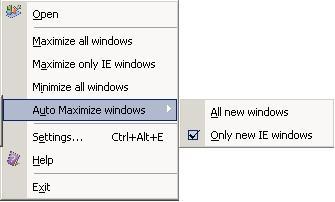
Maximize or minimize all
windows or only IE windows.
-
Automatically
maximize all new windows or only new IE windows.
Max details...
Click
here for preview |
-
Hide
windows program (applications) or /Show/Close
 / / / /
Using
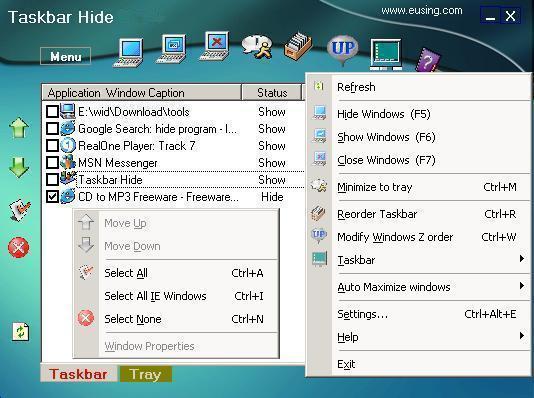
Taskbar Hide you can hide any running application
window. All you need to do is to select the application
in the Taskbar Hide list and click Hide
icon or
click mouse right button to popup the menu and select
hide item
for the change to take effect. Taskbar Hide is also able
to hide/show/close the program windows quickly through
pressing a hotkey.
-
Hide/Show
icons from the system tray
/
You can hide some of the less used icons from the system tray.
The operation is the same as to Hide/Show application
windows. Now this function supports windows me/2000/xp/vista/7/8/10/11.
-
Modify application windows order on taskbar

You can arrange the windows on taskbar according to your
preference. Select the application in the Taskbar Hide list
and use Up and Down arrows to reorder the application windows.
This feature becomes useful when you want to put related
application windows together.
-
Stay on top window 
You
can select Always on top (topmost) or Normal
(Non-topmost). The former places the selected window
above all non-topmost windows, and this window will
maintains its topmost position even when it is
deactivated. The latter places the selected window above
all other non-topmost windows but below all topmost
windows.
-
Minimize to
tray
You can minimize any running application window to the system
tray instead of an icon on your taskbar. You can bring the
application window back to normal by using Show, or
double click left mouse button on the icons or click right
mouse button from the menu.
-
Hide taskbar
You can select to hide taskbar or Hide/Show any of the following: taskbar,
start button, task window, system tray, and time clock.
-
Window Properties
You can find out more information
of the selected window with the Window Properties dialog box. Such as window handle, class name, process
id, thread id, window style and exstyle.
-
Maximize
all windows
You can use Taskbar Hide to
maximize all windows or only IE windows so that they cover
the entire screen. Also you can minimize all windows to
taskbar.
|
|
|
|
|
|
|
|
|
|
Support
Taskbar Hide |
|
Taskbar Hide is a freeware product, this means
that you can download and use it for free. Anyway we will
appreciate contributions: we will use collected money to
finance new development of Taskbar Hide.
Without your support, perhaps we can't keep adding new
features. Thanks for your help.
 |
|
|
Our other products:
Free IP Scanner -
A very fast IP scanner and port scanner.
Free
Internet Window Washer - A free internet tracks
eraser and privacy cleaner software.
Eusing Free Registry Cleaner - A free registry
cleaner to safely scan and fix registry problems.
Free CD to MP3
Converter - A free CD ripper to rip audio CD and
convert to MP3, Wav, Ogg or Wma file.
More
Products More Links |
|
|
|